
Use this guide to install Spire Desktop on a Mac, and to open it when macOS blocks it.
Intel Macs aren't supported. These steps won't work on a Mac with an Intel chip. To check your Mac, choose Apple menu > About This Mac. An Intel Mac shows Intel next to Processor or Chip.
TABLE OF CONTENTS
Installing Spire Desktop
- Download the Spire Desktop zip file for macOS.
- Open your Downloads folder. If Safari already extracted the zip file, you'll see Spire Desktop there. If you see a zip file instead, double-click it to extract it.
- Drag Spire Desktop into your Applications folder. If you're updating, choose to replace the older version.
- Open Spire Desktop from Applications.
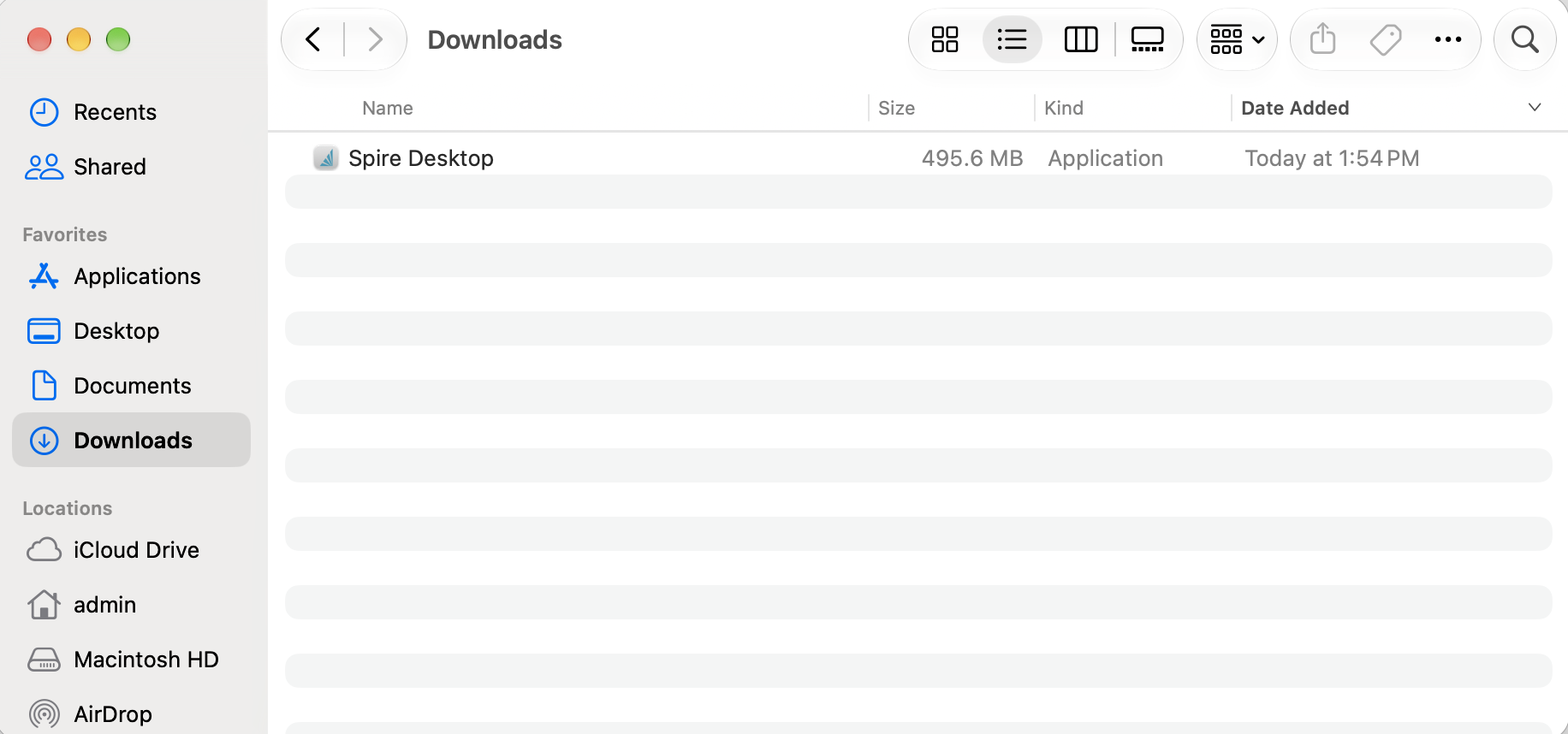
Spire Desktop in the Downloads folder after Safari extracts the zip file.
When macOS blocks the app at step 4, follow the steps in the next section.
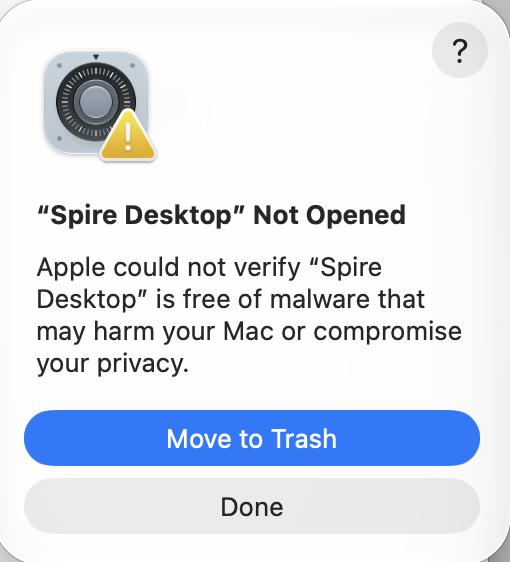
The message macOS shows when it blocks Spire Desktop. Click Done, not Move to Trash.
Why macOS blocks Spire Desktop
Spire Desktop for macOS isn't signed by a registered Apple developer yet, so Apple can't verify it and macOS blocks it when you try to open it. Safari's download settings don't change this. The file isn't damaged, and you don't need to download a different version.
To allow the app to open, choose Open Anyway in System Settings.
Allow Spire Desktop to open
- Try to open Spire Desktop, then close the message that appears.
- Choose Apple menu > System Settings, then click Privacy & Security in the sidebar.
- Scroll down to Security, and click Open Anyway beside the Spire Desktop message. The button is available for about an hour after you try to open the app.
- Enter your Mac login password, then click OK.
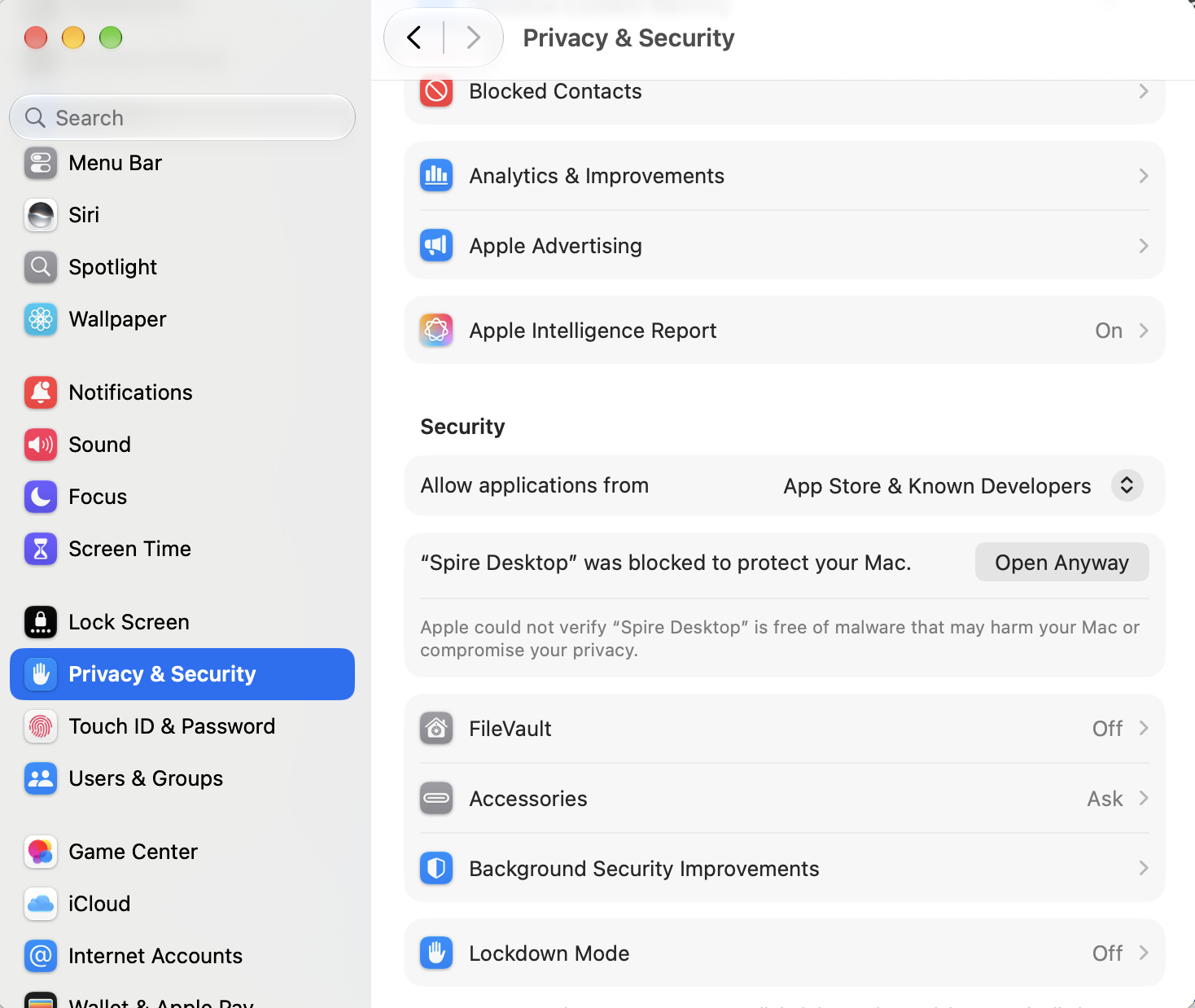
The Open Anyway button in the Security section of Privacy & Security.
The Mac remembers this choice, so after this you can open Spire Desktop by double-clicking it. If you update to a new version and it's blocked again, repeat these steps.
Still not opening? Contact your Spire partner or Spire support, and include your macOS version, a screenshot of the message, and the spired.log file from your Spire Server if you can access it. If Spire Desktop crashes, you can also send the crash report from the Console app (Applications > Utilities > Console, then Crash Reports)