
You can install and run multiple versions of Spire Desktop on the same computer by installing each version into a separate folder and creating uniquely named desktop shortcuts.
Step 1: Install Each Version into a Separate Folder
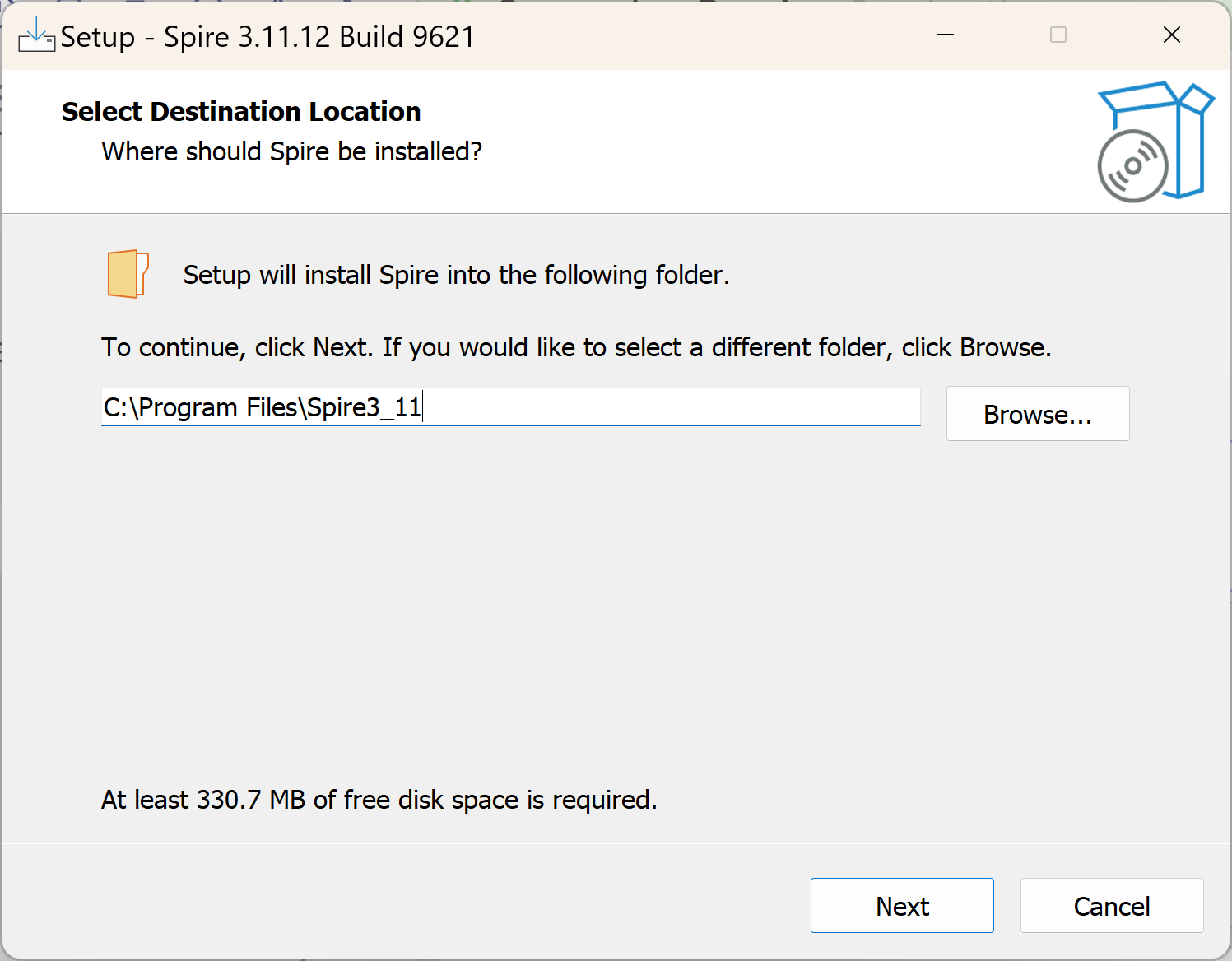
During the installation process, modify the installation folder name so each version installs into its own directory under it.
For example:
C:\Program Files\Spire3_11C:\Program Files\Spire3_13
When you reach the installation window shown below, edit the folder name before continuing with the installation.
Important: Do not install different versions into the same folder, or files may overwrite each other.
Step 2: Prevent the Installer from Replacing Existing Shortcuts
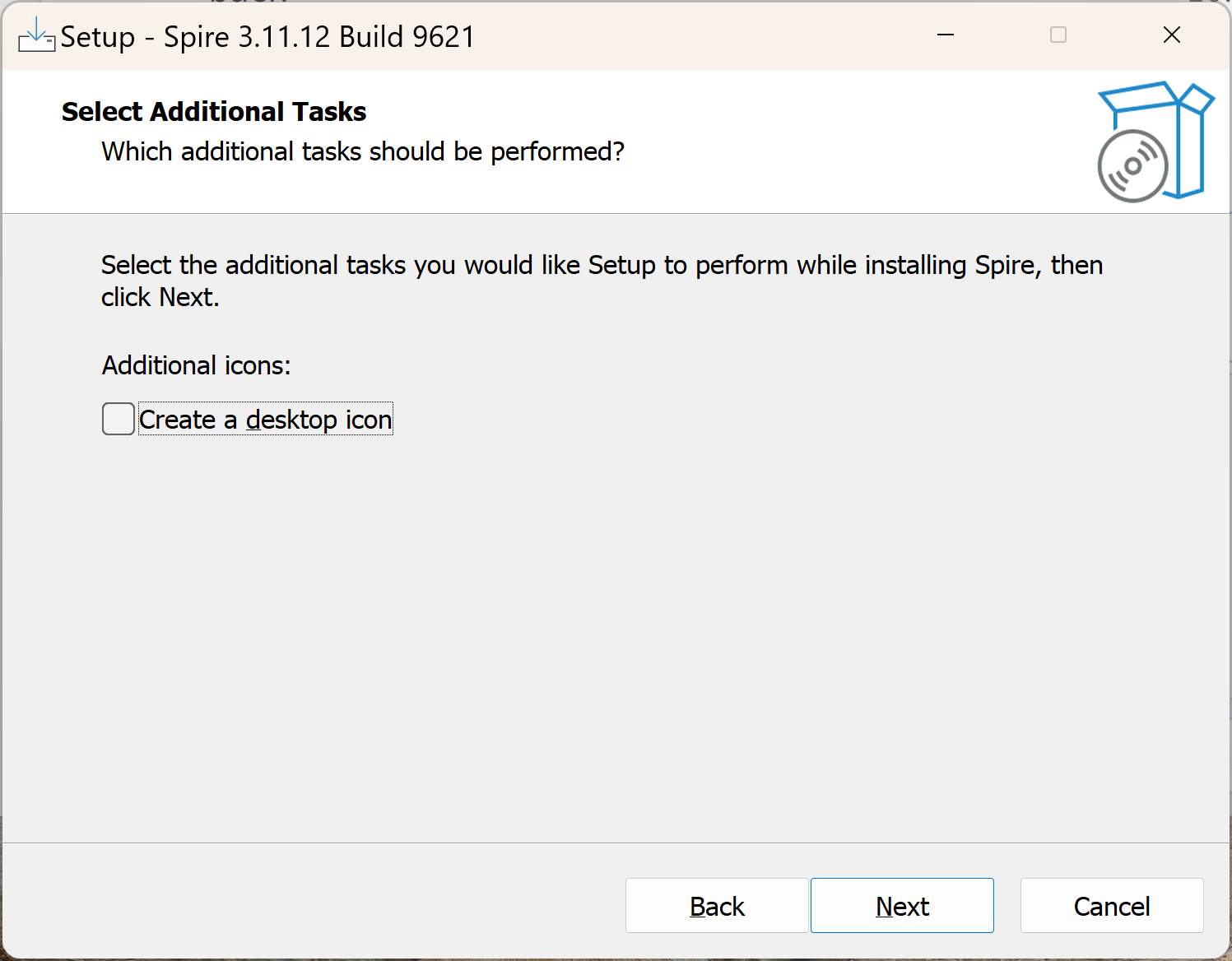
During the installation, uncheck the option to automatically create or overwrite the desktop shortcut.
This prevents the installer from replacing the shortcut from another Spire version already installed on the computer.
Step 3: Create a Manual Shortcut
After the installation completes:
Open the installation folder for the version you installed.
ExampleC:\Program Files\Spire3_11\Desktop- Locate
spire.exe. - Right-click
spire.exeand select Create shortcut.

Step 4: Place the Shortcut on the Desktop
When prompted with the message:
Windows can't create a shortcut here.
Do you want the shortcut to be placed on the desktop instead?
Click Yes.

Step 5: Rename the Shortcut
On the desktop:
- Right-click the newly created shortcut.
- Select Rename.
- Rename the shortcut to clearly identify the version.
Examples:
Spire 3.11Spire 3.13
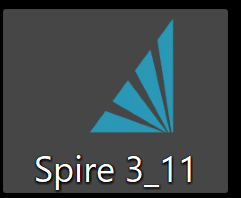
This makes it easier to launch the correct version of Spire Desktop.